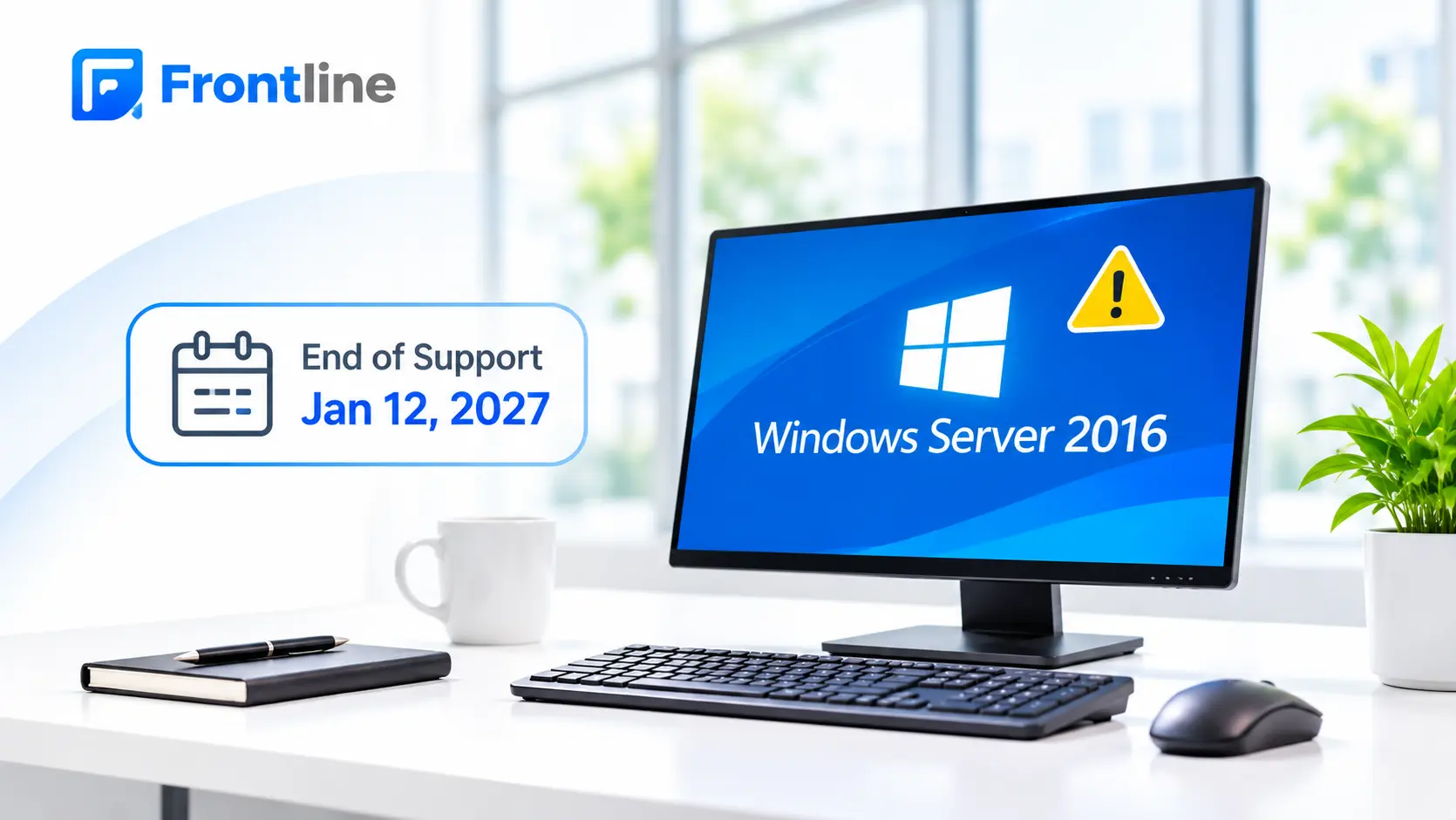
Microsoft ends extended support for Windows Server 2016 on January 12, 2027. After that date, the operating system stops receiving security updates, bug fixes and technical support, and any vulnerability discovered later stays open on every server that still runs it.
For Los Angeles businesses, the timing is tight. As of mid-November, roughly eight weeks remain, and that window includes the holiday slowdown when many offices are barely running.
This guide covers the dates, the risks that apply specifically to California businesses and a week-by-week plan for the time left.
Windows Server 2016 Support Dates at a Glance
Windows Server 2016 follows Microsoft’s Fixed Lifecycle Policy: five years of mainstream support, then five years of extended support with security fixes only. The official dates are listed on Microsoft’s Windows Server 2016 lifecycle page.
| Milestone | Date |
| Mainstream support ended | January 11, 2022 |
| ESU configuration opened in the Azure portal | August 3, 2026 |
| Extended support ends (final security update) | January 12, 2027 |
| ESU billing begins | January 13, 2027 |
| ESU coverage ends | Up to three years after end of support, through 2030 |
What Actually Happens After January 12
Your servers will keep running after January 12, but any server not enrolled in Extended Security Updates stops receiving security updates, bug fixes and technical support from Microsoft. Flaws disclosed on later Patch Tuesdays will stay open on those machines, and attackers tend to target them soon after the deadline.
The U.S. Cybersecurity and Infrastructure Security Agency lists unsupported software as the first entry in its catalog of cybersecurity Bad Practices and encourages every organization to address it. Vendors of backup tools, endpoint protection and business software also tend to drop support for retired operating systems over time.
Why the Deadline Carries Extra Weight in California
California law asks any business that keeps personal information about California residents to protect it with “reasonable security.” If customer or employee data leaks because that protection fell short, the people affected can sue under California Civil Code Section 1798.150.
Medical offices, dental offices and law firms have even more to protect. Practices that rely on IT support for healthcare and dental providers need to keep patient data on supported systems to meet HIPAA. Firms using managed IT services for law firms should make sure every server holding client files has a plan.
Before you renew your cyber insurance, check whether the application asks about outdated systems, and answer it honestly.
Step One: Build a Complete 2016 Inventory
Most businesses know about their main server, but older servers often sit in a closet or run quietly in the background. Before you decide what to do, make a list of every server still on Windows Server 2016.
Common ones include:
- The server that handles logins and user accounts (often called a domain controller)
- Servers that store shared files or run office printers
- Small-office servers running Windows Server 2016 Essentials
- Servers your team connects to remotely
- Servers that run your accounting, practice management or other business software, including its databases
- Virtual servers, plus any servers hosted offsite or in the cloud
For each one, write down what it does, which edition it runs (Standard, Datacenter or Essentials), how old the hardware is, which software runs on it and what kind of data it stores. Ask your software vendors whether their products work on Windows Server 2022 or 2025.
Pay close attention to the edition. Microsoft’s paid extended security updates only cover Standard and Datacenter, so an Essentials server needs a different plan.
If your IT provider already handles proactive server monitoring and maintenance, ask them for this list first, because their tools usually track it. You can then use the list to budget for replacements, and vCIO-led IT strategy and planning can help you spread those costs over the next few years.
Upgrade, Migrate or Buy Time: Comparing Your Options
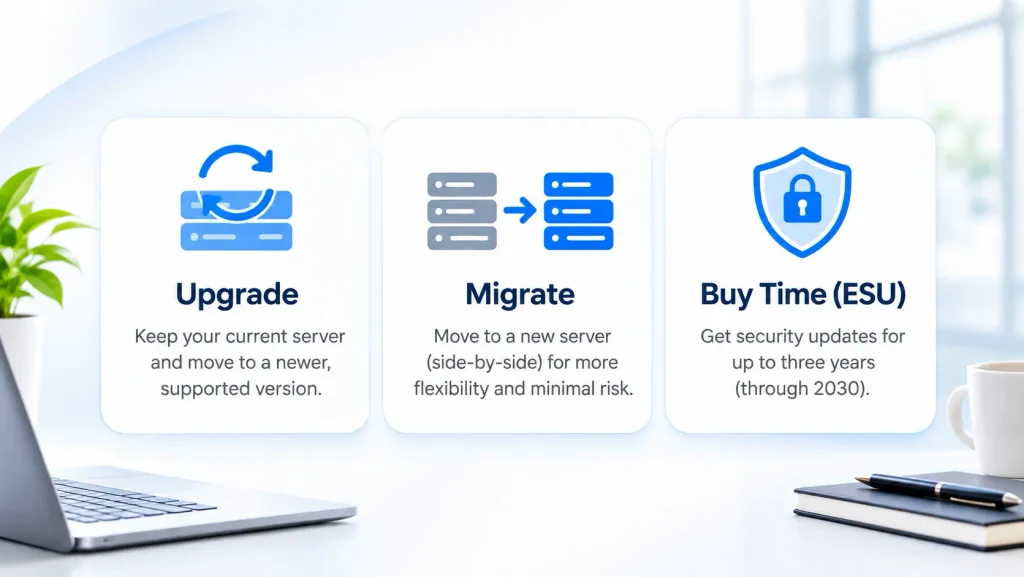
| Option | Best fit | Watch out for | Relative effort |
| In-place upgrade | Single-role file or app servers on hardware with life left | Not recommended for domain controllers; app compatibility | Low to moderate |
| New server, side-by-side migration | Domain controllers, aging hardware, servers with several roles | Hardware lead times and new licensing | Moderate |
| Move workloads to the cloud | File shares, apps with cloud versions, offices reducing on-site hardware | Internet dependency and ongoing subscription costs | Moderate to high |
| Extended Security Updates | Servers that cannot move before January 12 | Paid, security fixes only, Standard and Datacenter only | Low (temporary bridge) |
In-Place Upgrade
An in-place upgrade installs a newer version of Windows Server on the machine you already have, and your files, settings and software stay put. Microsoft’s Windows Server upgrade overview confirms that a 2016 server can upgrade directly to Windows Server 2019, 2022 or 2025.
Plan the upgrade carefully. Back up everything first, and schedule it for a quiet time, because the server will be offline for part of the process. Treating it as a planned piece of IT project services work, with a way to roll back if something goes wrong, keeps a failed upgrade from costing your team a workday.
Check the hardware too. A server bought in 2016 or 2017 can usually run newer software, but the machine itself is getting old and may need replacing soon anyway.
New Server With a Side-by-Side Migration
For the server that handles logins and user accounts, Microsoft’s in-place upgrade guidance recommends against upgrading it directly. It’s safer to set up a new server running Windows Server 2025, move the account system over, check that everything works and then retire the old one.
This approach also works well for file servers and older machines that handle several jobs at once. The old server keeps running while the new one is set up and tested, so you can switch over after hours and go back if anything goes wrong. Before you switch, make sure your server backup and disaster recovery plan covers the new server and that you can restore files from a backup.
Moving Workloads to the Cloud
You may not need to replace every 2016 server. Shared files can often move to SharePoint, Teams and OneDrive, so your team can reach them from anywhere and you can retire the file server after a planned Microsoft 365 migration. Business software that still needs a Windows server can run in Microsoft’s Azure cloud, with managed cloud services taking care of updates, monitoring and costs.
One rule changed in 2026. When Windows Server 2012 reached the end of support, moving it to Azure came with free security updates. Windows Server 2016 doesn’t get that benefit. Under Microsoft’s pricing consistency update, extended security updates now cost the same whether the server runs in Azure or in your office. To get full support in the cloud, you still need to upgrade the server to a newer version or move to a cloud service.
Extended Security Updates as a Bridge
If a server can’t be upgraded or moved before January 12, you can pay Microsoft to keep sending security fixes for a while. Microsoft announced Extended Security Updates for Windows Server 2016 in February 2026, the program covers the most serious security issues for up to three years, through 2030. It only works with the Standard and Datacenter editions, and it adds no new features or general bug fixes. Billing starts January 13, 2027.
The cost depends on how many servers you have and how powerful they are, so ask your IT provider for a quote before you sign up. Use the extra time to finish moving each server, and give each one a firm date to come off the program.
An Eight-Week Plan to Hit the January 12 Deadline
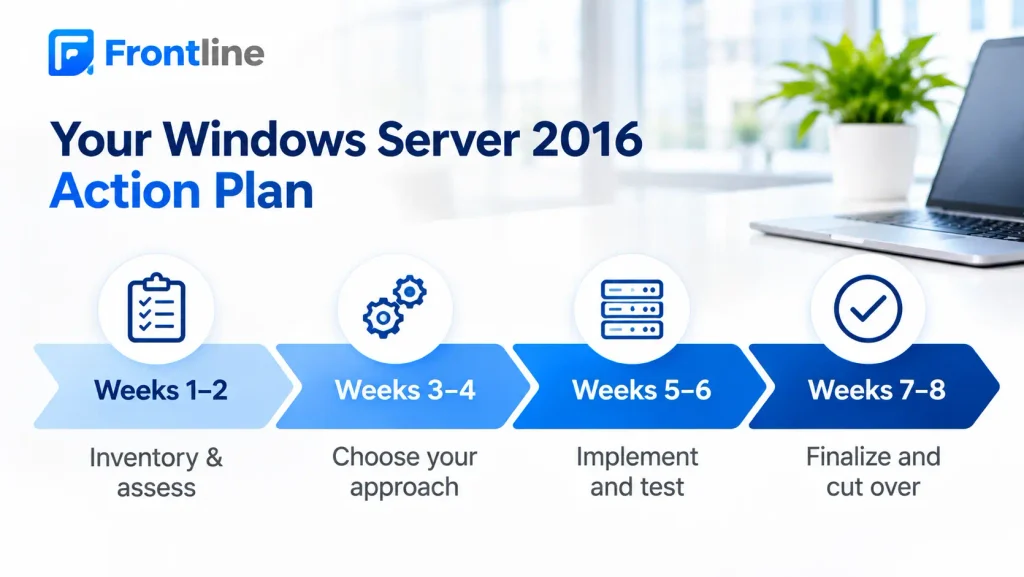
- Weeks 1–2 (November 17–30): List every 2016 server. Test that you can restore each one from its backup. Ask your software vendors whether their programs run on Windows Server 2022 or 2025.
- Weeks 3–4 (December 1–14): Decide what happens to each server: upgrade, replace, move to the cloud or pay for extended updates. Order new hardware and licenses now, because deliveries slow down at the end of the year. Sign up any server that won’t be ready in time for extended security updates.
- Weeks 5–6 (December 15–28): Start with the simpler servers, such as print servers and backup file servers. Plan the work around holiday closures so someone can check that everything works on the next business day.
- Weeks 7–8 (December 29–January 11): Move the login server and your main business software. Test logins, shared files, printing and everyday apps. Then shut down and wipe the old servers, and update your IT records.
- After January 12: Make sure every remaining 2016 server is covered by extended updates, and set a firm date to move each one.
Mistakes That Slow Server Retirements Down
- Assuming every server qualifies for extended updates: Only the Standard and Datacenter editions are covered. Check each server’s edition before you count on that extra time.
- Upgrading the login server directly: Microsoft recommends setting up a new server for user accounts and logins, then retiring the old one.
- Forgetting about your business software: Some programs only work on older versions of Windows, so an upgrade can stop them from running. Check with your software vendors in the first week.
- Leaving the old server switched on: An old server that stays connected to your network can still give attackers a way in. Once the new server is working, shut the old one down and wipe it.
- Relying on extended updates for too long: The program ends in 2030 at the latest, and every year on it means paying for a system you’ll replace anyway.
- Skipping a wider security check: A server project is a good time to review the rest of your setup. If nobody has looked at your Microsoft 365 security settings lately, compare them against these Microsoft Secure Score benchmarks.
How Frontline Supports Windows Server 2016 Retirements
Frontline can help Los Angeles businesses that need their 2016 servers handled before the deadline without disrupting daily work. Our team starts with an inventory of every server and the applications on it, recommends the right path for each one, and plans the work around your business hours. That includes new domain controllers, file migrations to Microsoft 365, Azure moves and ESU enrollment for servers that need more time.
After the migration, the new servers become part of your ongoing cybersecurity and compliance services, with patching, monitoring and documentation that support your California privacy and industry obligations.
Talk to Frontline Before Your 2016 Servers Lose Support
Eight weeks is enough time to retire Windows Server 2016 safely if the work starts now. Frontline can review your servers, flag what needs to move first and give you a clear plan for each one. Book a free IT assessment to get started.
FAQs
No. They will keep running, but they will stop receiving security updates, bug fixes and technical support from Microsoft unless they are enrolled in Extended Security Updates.
Yes. Microsoft supports an in-place upgrade path for Windows Server 2016 to 2025 on nonclustered systems. For domain controllers, Microsoft recommends deploying new servers instead of upgrading in place.
No. Microsoft’s pricing for ESU offerings released on or after April 1, 2026, including Windows Server 2016, is the same in Azure and outside it.
Microsoft’s Azure Arc ESU documentation lists the Standard and Datacenter editions. If you run Essentials, plan to upgrade or migrate before January 12, 2027, and confirm any remaining options with a Microsoft partner.
Up to three years after end of support, through 2030. Billing starts January 13, 2027.
FT
About the author