
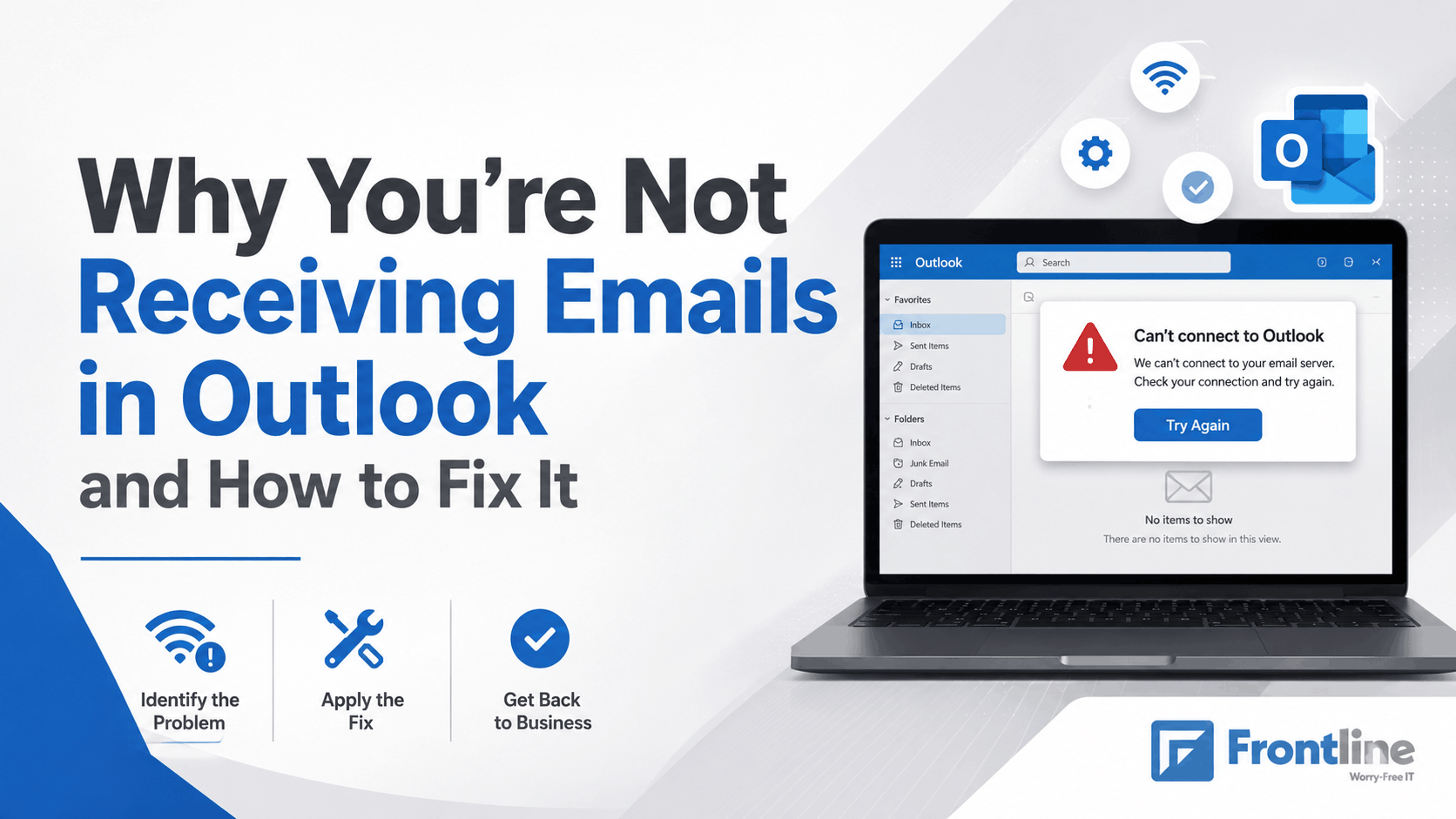
If you are not receiving emails in Outlook, there are several common causes, including a full mailbox, spam filters, enabled offline mode, sync errors, or profile corruption.
If you know that an email from a client was sent and you are still waiting for it hours later, it’s worth checking what’s wrong with Outlook.
For small businesses, a broken email client can mean a missed contract, a delayed invoice, or an unanswered vendor.
This guide covers the five most common reasons Outlook stops receiving emails and exactly what to check for each one.
Why Am I Not Receiving Emails in Outlook?
Outlook can fail to deliver email for several different reasons:
The symptoms can look the same, such as an empty inbox or no new-email notifications. However, the solution depends on the underlying cause.
5 Common Reasons Outlook Stops Receiving Emails
Here are the five common causes your IT team will usually check first.
Outlook Is Set to Work Offline
This is one of the most common and most overlooked reasons Outlook stops receiving email. If someone accidentally clicks "Work Offline" in the Send/Receive tab, Outlook stops syncing.
Once enabled, there may be no notification or obvious error alert. Outlook is simply disconnected from the server, which means you will not receive new messages.
Look at the status bar at the bottom of Outlook. If you see “Working Offline” in grey text, this is likely the problem.
Go to Send/Receive in the top menu and click Work Offline to toggle it off. The status bar should change to “Connected.”
This takes about 30 seconds to check and should be the first step when troubleshooting Outlook.

Outlook Is Not Syncing With the Server
If Outlook is online but you are still not receiving new emails, there may be a synchronization issue between Outlook and the email server.
This can happen during a Microsoft 365 maintenance window, after a password change, or following a network configuration update.
Right-click your Inbox in the left panel and select Update Folder. If new emails appear, Outlook’s synchronization had stopped.
If nothing changes, go to File → Account Settings → Account Settings. Select your email account and test or repair the connection. Any account or connection errors should appear there.
Outlook synchronization problems with Exchange can often be repaired by your IT team through the account settings without losing email data.
Also check the Microsoft 365 service status page to see whether Microsoft is experiencing an outage.

Emails Are Being Caught by Spam or Junk Filters
Outlook scans incoming messages for suspicious links, spam language, and other potentially malicious content. When a message triggers one of these filters, Microsoft may automatically move it to the Junk Email folder.
Sometimes, legitimate messages are mistakenly classified as spam.
Open your Junk Email or Spam folder and look for the missing message. If you find it, right-click it and select Not Junk to move it back to your Inbox.
If messages from a specific sender consistently land in Junk, add the sender to your Safe Senders list:
Home → Junk → Junk Email Options → Safe Senders → Add
If junk mail keeps slipping through, our guide on how to stop spam emails walks through six additional steps."
For businesses using Microsoft 365 with Defender for Office 365, spam-filtering rules may be managed at the administrator level.
If an entire domain is being blocked, your IT administrator may need to update the allow list or create a mail-flow rule in the Microsoft security administration portal.

Learn how to identify Microsoft email scams in 2026 in our latest blog.
Your Mailbox Is Full
Many Microsoft 365 business plans include a mailbox storage limit. When the mailbox reaches its maximum capacity, Outlook may stop accepting incoming messages.
Go to File → Account Info and look at the mailbox storage bar under your account name. If the mailbox is at or near capacity, you need to create more space.
Empty the Deleted Items and Junk Email folders. Create a data backup plan, archive older emails to a local .pst file, or ask your IT administrator to increase your mailbox quota or enable online archiving.
If senders received a bounce-back message saying your mailbox was full, ask them to resend the original email after you create more space.

Your Outlook Profile Is Corrupted
Outlook stores account settings, cached data, and other files in an Outlook profile. If the profile becomes corrupted after a Windows update, failed synchronization, or system crash, Outlook may appear to work while no longer receiving new messages.
Go to Control Panel → Mail. If you have multiple profiles or see something unexpected, the Outlook profile may be causing the problem.
Create a new Outlook profile and reconnect your email account. This process usually takes 10–15 minutes and requires your account credentials.
Your IT team can usually complete this remotely without losing important email data stored in Microsoft 365.

When to Call an Expert
These are among the most common reasons you may not be receiving emails in Outlook. However, if you check all five and email still is not arriving, the issue may be at the server or DNS level.
One possible cause is a problem with your MX records, which tell the internet where email for your domain should be delivered.
MX-record issues often affect the entire company at once rather than a single employee. Fixing them requires access to your domain registrar or DNS hosting provider.
If your whole team stopped receiving email at the same time, or if senders are reporting undeliverable-message errors, contact your IT support provider immediately.
Prevent Outlook Email Problems Before They Start
Most Outlook email issues are reactive. You may not notice a problem until messages stop arriving. These simple practices can reduce the risk:
Set a calendar reminder to check mailbox storage every quarter.
Train staff to avoid accidentally enabling Work Offline mode. This IT onboarding checklist will help you.
Review your Junk Email folder regularly.
Review and update email filters when necessary.
Keep Outlook and Windows updated to maintain reliable synchronization.
Still Not Receiving Emails in Outlook? Frontline Can Help
If you have checked all the issues in this guide and you are still not receiving new email, it may be time to bring in an expert.
The problem may require a deeper analysis of your Microsoft 365 configuration, DNS records, Outlook profile, mail-flow rules, or email-security settings.
Frontline provides IT support and Microsoft 365 management for small businesses across Los Angeles. We can diagnose and fix most Outlook email issues in a single session.
Ready to fix it today?
Frontline can solve your Outlook issues without losing important data, so you can recieve incoming emails and work smoothly.
Book a 30-Minute IT Consultation