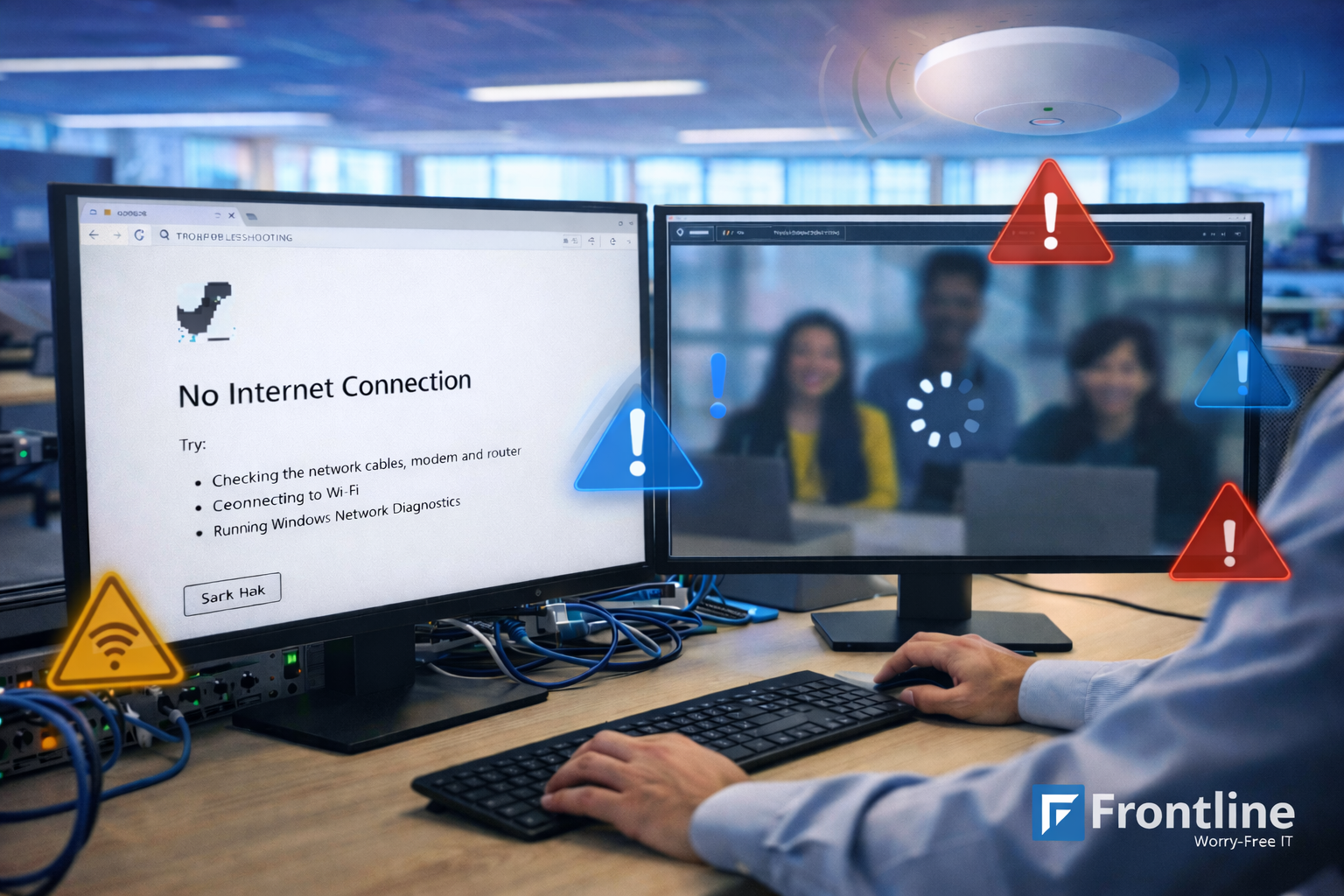
The single biggest reason business WiFi underperforms is that it is running on a consumer router meant for a house, not a workplace. Reliable business WiFi is built around properly placed wireless access points. Here is how they work, what a good installation looks like, and how to get coverage your team can actually rely on.
1,500–2,000 Square feet one access point may cover in an open office
60–80 Devices a 20-person office may have connected at once
-67 dBm A practical minimum signal target for reliable business use
These figures are useful planning estimates. Final access point placement should be confirmed through a wireless site survey and testing.
What Is a Wireless Access Point?
A wireless access point, often shortened to AP or WAP, is a device that broadcasts your WiFi network and connects wireless devices such as laptops, phones, and tablets back to your wired network. In an office, several access points can be placed throughout the space so coverage remains strong everywhere people work, not only near the router.
Access Point vs. Router: What Is the Difference?
There is one major difference: a router connects your business to the internet and directs network traffic, while a wireless access point is primarily responsible for providing WiFi coverage.
Router or Firewall
Connects your network to the internet, directs traffic, applies security policies, and protects the edge of your business network.
Wireless Access Point
Broadcasts WiFi within a specific area and connects wireless devices back to the wired network.
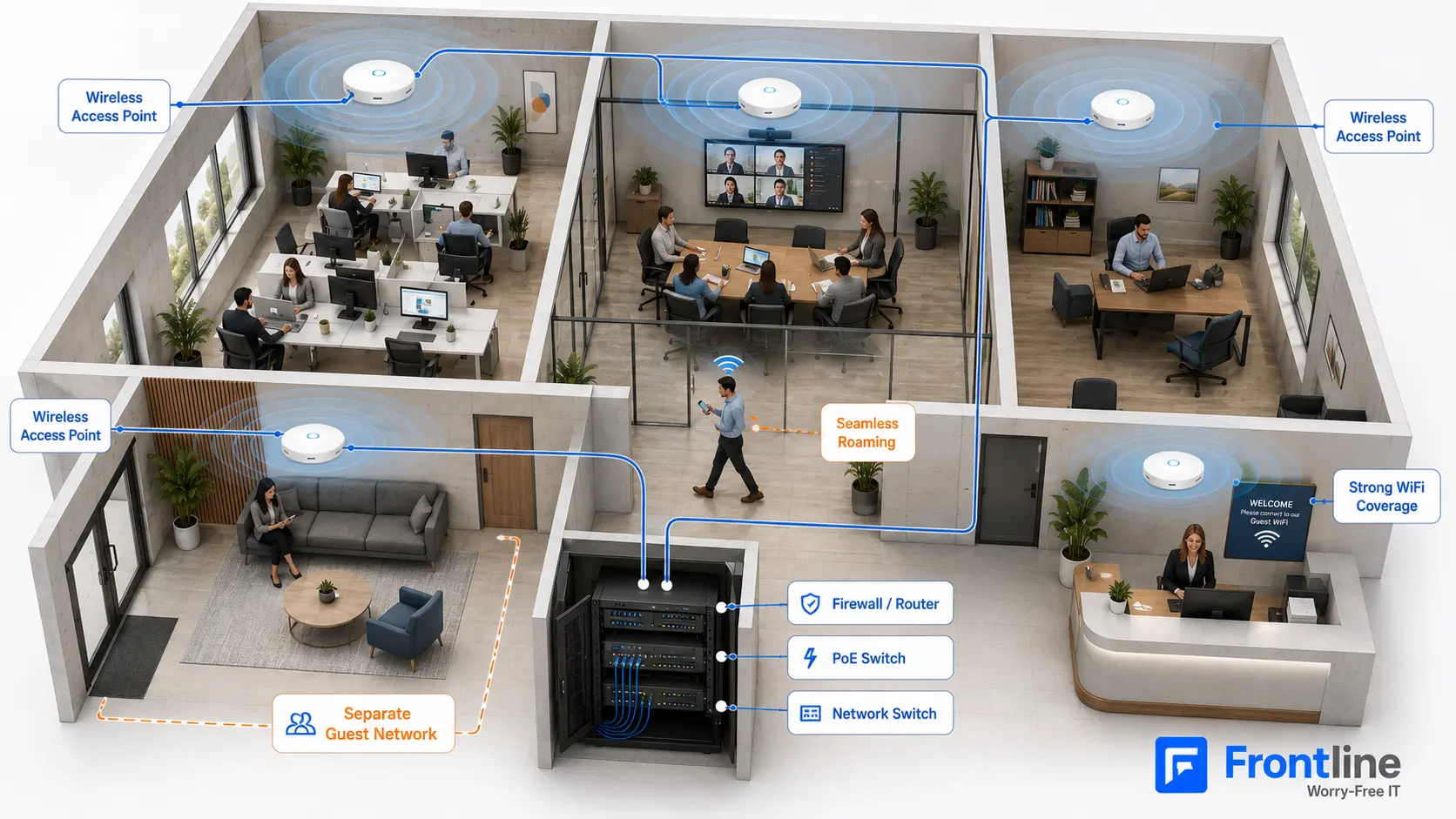
The all-in-one router provided by an internet service provider tries to act as a router, switch, firewall, and wireless access point at the same time. That may work in a home, but it is rarely the right design for a workplace. A business network normally separates those roles with a firewall or router at the edge, a network switch in the middle, and dedicated access points providing coverage throughout the building.
Why One Router Is Not Enough for an Office
- Coverage: A single device cannot reliably cover a multi-room office, warehouse, or multi-floor space. You may have a strong signal near the router and dead zones everywhere else.
- Capacity: Consumer equipment can struggle when dozens of devices connect at once. Business access points are designed to support higher device counts and heavier daily usage.
- Roaming: Properly configured access points allow devices to move between coverage areas without unnecessarily dropping calls or active sessions.
- Security: Business access points make it easier to create separate employee, guest, and device networks instead of placing everything on the same connection.
Wireless refreshes are some of the most satisfying projects we complete because the difference is immediately noticeable. Frontline has replaced aging access points across Los Angeles and completed switch-and-WiFi upgrades together so coverage, capacity, and security improve as one connected system. When the network is designed for the space instead of guessed at, dead zones and dropped connections can be addressed at their source.
Before You Buy Anything: Plan Your Network
Reliable business WiFi starts with understanding the office, the devices connecting to it, and how the network is actually used. Start with these three questions.
1. How Many Devices Will Connect?
Most offices underestimate their device count. A 20-person business with laptops, phones, VoIP equipment, printers, tablets, cameras, TVs, card readers, and smart devices can easily have 60 to 80 devices connected at once. Guest WiFi can increase that number further. Count devices, not only employees.
2. What Does Your Space Look Like?
As a general planning estimate, one access point may cover approximately 1,500 to 2,000 square feet in an open office. That range can shrink significantly when the signal must pass through concrete, brick, metal shelving, treated glass, elevator shafts, or several interior walls. Review the floor plan and identify what sits between each access point and the areas where people work.
3. What Are People Doing on the Network?
Email and basic web browsing use relatively little bandwidth. HD video conferencing may require roughly 3 to 4 Mbps per active user, while 4K video, cloud backups, and large file transfers can use considerably more. Understanding the workload helps determine the required internet connection, access point capacity, and whether Quality of Service settings are needed to prioritize calls and other critical traffic.
A Real Small-Business WiFi Example
A discussion in the networking community demonstrates why access point planning cannot be based on employee count or total square footage alone.
Real-world office example
The business had only 16 employees, but its building contained four rooms separated by brick walls. The rooms ranged from approximately 1,000 to 2,400 square feet, and employees needed to move between them without losing their wireless connection.
The proposed setup included four access points and a PoE switch. However, the discussion quickly showed that the office layout, wall materials, room sizes, device usage, and roaming expectations mattered more than selecting a brand first.
This is a common situation in business WiFi planning. A company may have relatively few employees but still require several access points because physical barriers prevent one device from covering the entire office.
One access point per room may be a reasonable initial estimate in this example, but it should not be treated as the final design without measuring signal strength, interference, device density, and cable availability.
The lesson is simple: the number of access points should be based on the environment, not only the number of users. You can see the original discussion for additional context.
How Many Access Points Does a Small Business Need?
Many small offices need approximately one access point for every 1,500 to 2,000 square feet of open space. However, that estimate changes when the office contains brick or concrete walls, multiple floors, metal shelving, treated glass, high device density, or areas where video calls and other real-time applications must remain stable.
| Office Environment | Initial Planning Estimate | Main Consideration |
|---|---|---|
| Open office with light usage | 1 AP per 1,500–2,000 sq. ft. | Few signal barriers |
| Busy office with many devices | 1 AP per 1,000–1,500 sq. ft. | Capacity may matter more than coverage |
| Brick or concrete rooms | Often 1 AP per room or coverage area | Walls significantly reduce signal |
| Multi-floor office | Plan each floor separately | Floor materials and vertical interference |
| Warehouse with metal shelving | Site survey required | Signal reflections and changing inventory |
The practical answer
Square footage gives you a starting number. Your walls, device density, roaming requirements, and daily workload determine whether that number is correct.
Why the Access Point Brand Is Not the First Decision
Online discussions often begin with equipment recommendations. In the small-business example, commenters suggested several different wireless systems and disagreed about their reliability, features, pricing, and roaming performance.
That disagreement highlights an important point: the hardware should not be selected before the network requirements are understood.
The right access point depends on:
- The size and construction of the office
- The number and type of connected devices
- Roaming and voice-call requirements
- Guest network and security requirements
- Centralized management and monitoring needs
- The available budget and expected business growth
A properly designed network using appropriate equipment will usually outperform more expensive hardware installed without a coverage and capacity plan.
How to Set Up Wireless Access Points the Right Way
Reliable WiFi is designed around how the office is built and how employees use the network. A professional installation should include the following steps.
1. Wireless Site Survey
Review the floor plan, building materials, nearby networks, employee locations, and the number of devices connecting in each area. Concrete, glass, brick, and metal can all change how far the signal travels.
2. Access Point Placement and Count
Determine how many access points are required and where they should be mounted to provide even coverage without creating excessive overlap or interference.
3. Cabling and Power
Each access point normally connects to the network switch through Ethernet cabling. Power over Ethernet, or PoE, allows the same cable to carry both data and electrical power, removing the need for a separate ceiling outlet.
4. Network Configuration
Configure employee and guest networks, wireless security, channels, transmit power, and roaming settings so devices remain stable as people move around the office.
5. Testing and Tuning
Test coverage, signal strength, speed, roaming, interference, and performance under load. Signal strength between approximately -30 dBm and -67 dBm is generally strong enough for reliable use. Performance often becomes less consistent below -70 dBm. Tools such as NetSpot or WiFiman can provide basic readings while walking through the office.
6. Ongoing Monitoring
Keep access points, switches, and firewalls updated and monitor the network for recurring performance problems. Coverage and speed should also be re-tested after major office changes, equipment additions, or increases in staff and connected devices.
WiFi, Switching, and Security Work Together
Wireless access points depend on the switch that powers and connects them, the cabling carrying their traffic, and the firewall protecting the network behind them. Installing new access points without reviewing those other components can leave performance and security problems unresolved.
The best results come from treating WiFi, switching, cabling, and security as one connected system. Frontline’s business network support services help companies review the full network instead of treating wireless coverage as an isolated issue.
Tired of WiFi Dead Zones?
We will survey your space, determine how many access points you need, and handle the installation, configuration, and testing. No guessing, no dead zones, and fewer dropped calls.
Business WiFi FAQs
What is a wireless access point in networking?
It is a device that broadcasts WiFi and connects wireless devices to a wired network. Businesses commonly use several access points throughout an office to provide consistent coverage in different rooms and work areas.
What is the difference between an access point and a router?
A router connects the business network to the internet and directs traffic. An access point provides wireless coverage. Internet provider devices often attempt to perform both roles, but dedicated business equipment provides more control, capacity, and coverage.
How many access points does my office need?
It depends on the square footage, office layout, building materials, number of devices, and how the network is used. One access point for every 1,500 to 2,000 square feet may work as an initial estimate in open spaces, but offices with brick walls or heavy device usage may require more.
Do I need a separate network for guests?
Yes. A guest network keeps visitor traffic separate from employee systems, business files, printers, and other internal resources. It also makes it easier to manage guest bandwidth and access.
Can I install several access points with the same network name?
Yes. Business access points are commonly configured with the same SSID so employees can connect to one network throughout the building. However, channel planning, transmit power, roaming settings, and access point placement must be configured correctly for reliable movement between coverage areas.
Can I just buy a stronger router instead?
A stronger router does not remove the physical limitations created by distance, walls, floors, and device capacity. Multiple properly placed access points provide coverage where it is needed instead of trying to push one signal across the entire workplace.
FT
About the author