
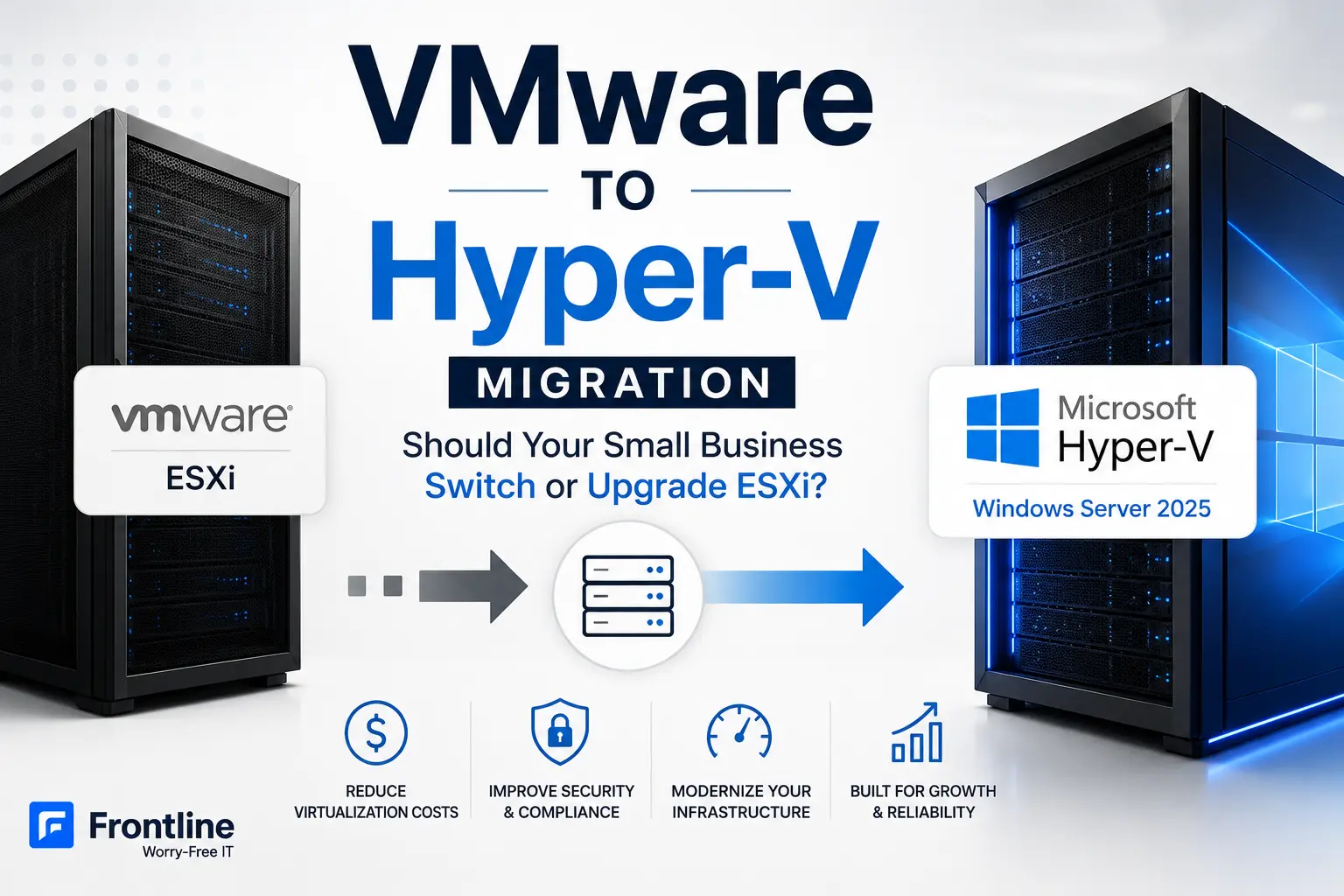
If you run an outdated VMware ESXi host, you are probably wondering whether it is better to upgrade VMware or move to a different platform. For many companies, Microsoft Hyper-V is a practical alternative because it is included with Windows Server licensing and may reduce separate virtualization costs.
This guide explains the risks of unsupported ESXi, the differences between VMware and Hyper-V, and how a structured VMware to Hyper-V migration works.
Why Small Businesses Are Stuck on Old ESXi Hosts
Many businesses became stuck between VMware product changes and rising costs. ESXi 6.5 and 6.7 reached end of support in 2022, and vSphere 7.0 support ended in 2025. While vSphere 8.0 remains supported until 2027, upgrading means moving away from the perpetual licenses many businesses purchased years ago.
After Broadcom acquired VMware, licensing shifted toward subscription-based, per-core pricing. For a small business running only a few hosts, that can create a much larger cost increase than expected.
In many cases, the old ESXi systems were installed years ago, worked reliably, and were left alone because they did their job. Now those businesses need to decide whether to upgrade VMware, move to Hyper-V, or retire the servers entirely.

What Are the Risks of Running an Outdated Hypervisor?
- No security updates: Unsupported hypervisors no longer receive patches.
- Compliance issues: Standards such as PCI DSS generally require supported software.
- Cybersecurity insurance concerns: Unsupported software may complicate a claim.
- Aging hardware risks: Older hosts often have expired warranties and higher failure risk.

What Makes Sense for a Small Business: Your Three Options

How to Choose the Right Path
| Your environment | Recommended approach |
|---|---|
| vSAN, VMware-certified apps, or VMware expertise | Stay with VMware and upgrade ESXi |
| 1–3 hosts, mostly Windows VMs, Windows Server licenses | Migrate to Hyper-V |
| Only a few small VMs and heavy cloud use | Move to Azure or SaaS |
| Old ESXi and outdated guest operating systems | Migrate and modernize together |
VMware ESXi vs. Hyper-V: What Changes After Migration?
For most small businesses, moving from VMware ESXi to Hyper-V does not change how employees work or how applications run. The biggest differences are licensing, management, backup, high availability, storage, and administrator skills.

| Area | VMware ESXi | Hyper-V |
|---|---|---|
| Licensing | Subscription, per core | Included with Windows Server |
| Management | vCenter and VMware tools | Hyper-V Manager and Windows Admin Center |
| Backup | Veeam and third-party tools | Veeam and third-party tools |
| High availability | vSphere HA and vMotion | Failover Clustering and Live Migration |
| Storage | vSAN with extra licensing | Storage Spaces Direct or local storage |

How a VMware to Hyper-V Migration Works Step by Step
VMware uses VMDK virtual disks, while Hyper-V uses VHDX. Converting between them is a common migration task.

- Microsoft VM Conversion Tool: Agentless, but with environment limitations.
- Veeam backup and restore: Restore the VMware VM as Hyper-V and keep the original VM for rollback.
- Other conversion tools: SCVMM and StarWind V2V Converter can fit specific environments.
A Typical VMware to Hyper-V Migration Process

- Review the environment: Inventory VMs, operating systems, applications, dependencies, storage, and networking.
- Verify backups: Confirm backups are current and restorable.
- Test one VM first: Use a non-critical workload.
- Prepare Hyper-V: Configure Windows Server, storage, networking, security, backup, and monitoring.
- Convert and test production VMs: Validate applications, permissions, and performance.
- Schedule the cutover: Move workloads during an agreed maintenance window.
- Monitor after migration: Verify performance, backups, alerts, and application behavior.
Managed Migration vs. DIY
A small VMware environment may look simple, but risk usually appears in dependencies, backups, networking, application compatibility, and rollback planning. A managed project adds structured testing, documented recovery steps, and post-migration support.

Should You Switch to Hyper-V or Upgrade ESXi?
Stay with VMware when VMware-specific features or certifications are critical. Move to Hyper-V when you run a small number of mostly Windows-based hosts and want to use Microsoft’s built-in virtualization platform. Consider Azure or SaaS when the remaining local workloads no longer justify new server hardware.
The right decision should come from an inventory of workloads, licensing, hardware condition, backup requirements, compliance needs, and future growth.
Frequently Asked Questions
Need Help Planning a VMware to Hyper-V Migration?
Frontline can review your VMware environment, compare upgrade and migration costs, verify backups, and build a migration plan designed to minimize downtime.
Book a 30-minute consultation